Start Here: Interactive Setup Demo
Before diving into the detailed documentation, we recommend walking through this interactive demo to understand the full setup process.
This guided demo covers:
- Installing the GlamAR extension
- Getting API keys from your PixelBin account
- Selecting a subscription plan
- Adding and managing products
- Uploading 3D models
- Inserting the Try-on experience into your theme
The demo provides a visual, step-by-step walkthrough of the entire workflow so you can see exactly how each section fits together.
We recommend completing this walkthrough once before configuring your live store.
After reviewing the demo, continue next for detailed configuration instructions, field explanations, and best practices.
Setup
The GlamAR Eyewear Virtual Try-On plugin allows merchants to offer real-time AR try-on experiences directly within their Shopify storefront. This guide walks you through the complete setup process of installation and activation.
Install the GlamAR Eyewear Virtual Try-On Plugin
Before configuring AR try-on functionality, you must first install the plugin from the Shopify App Store.
- Open the Shopify App Store.
- Search for GlamAR Eyewear Virtual Try-On.
- Click on the plugin from the search results.
- Click Install.
- Approve the required permissions.
Once installation is complete, the app will appear under your Shopify Apps section.
Launch the App Setup
After installation, you’ll be redirected to the app’s launch screen. Click the Launch button to begin setting up the integration.
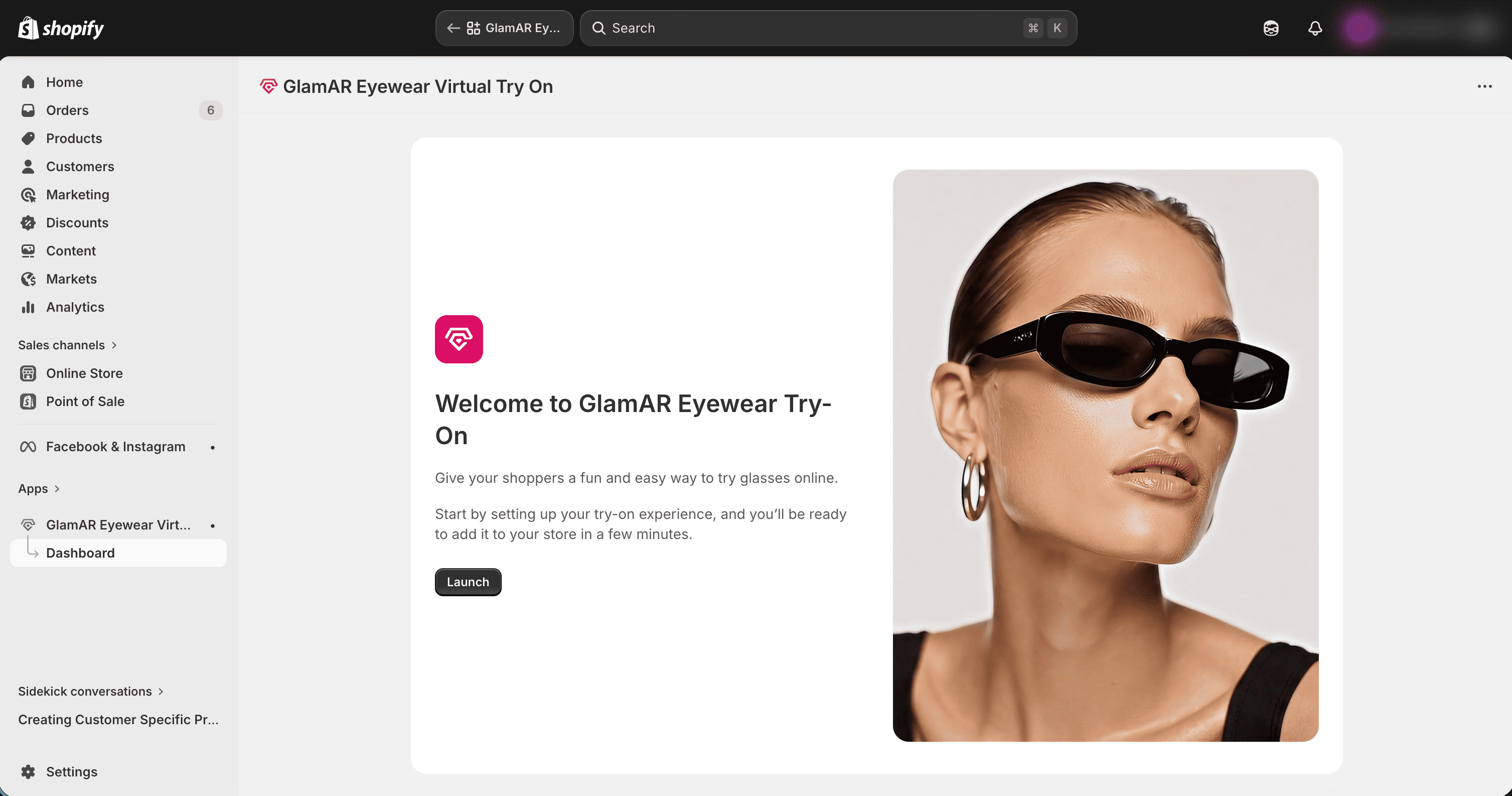
This will take you to the initial configuration page, where you’ll complete two simple steps to activate GlamAR.
Connect Your Store Securely
To enable AR functionality, your Shopify store must securely connect to the GlamAR backend through PixelBin.
What This Step Does
This authentication process ensures that:
- Your store is authorized to use GlamAR services
- AR assets can be loaded securely
- AI processing and try-on rendering function correctly
Enter Access Credentials
On the setup page:
- Click Get API Token.
- This will redirect you to the PixelBin Console.
- In PixelBin:
- Navigate to Settings → Tokens.
- Locate your Access Key and API Token.
- If you don’t have one yet, create a new token.
- Copy both values.
- Return to Shopify and:
- Paste the Access Key
- Paste the API Token
- Click Submit
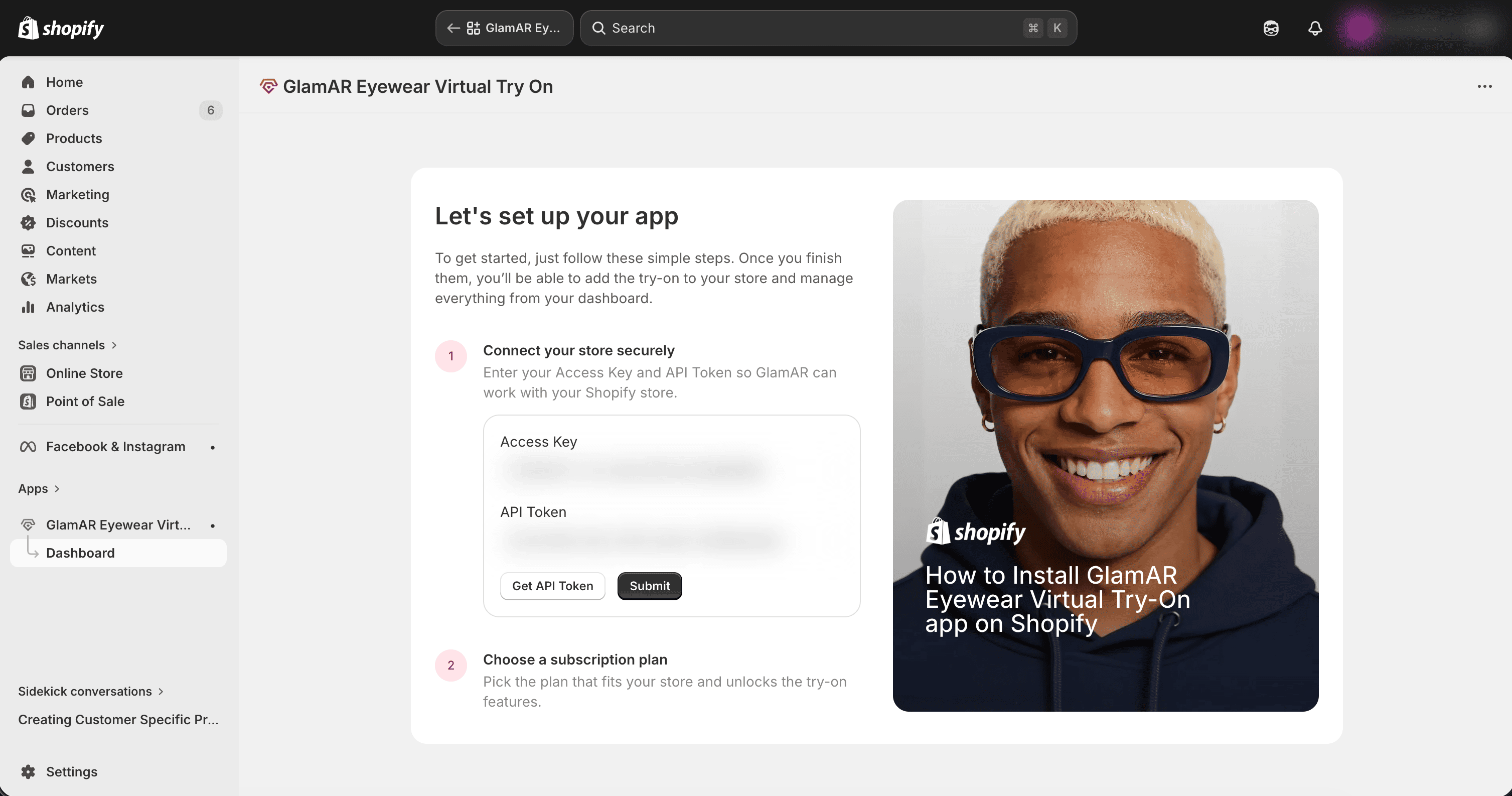
Once submitted successfully, your Shopify store is securely connected to GlamAR.
How It Works
- The Access Key establishes the connection between your Shopify store and GlamAR’s platform.
- The API Token authorizes access to GlamAR’s AI services.
- Both credentials must remain valid for the plugin to function properly.
Treat your Access Key and API Token like passwords. Never share them publicly.
Select Your Plan
After successfully connecting your store, the next step is choosing a subscription plan. You will see available plan options. For initial setup and testing, select the Free Plan to proceed.
What Happens Next
After selecting your desired plan:
- Click Approve.
- Confirm the subscription.
- Shopify will activate the selected plan.
Once approved, your GlamAR Eyewear Virtual Try-On plugin is fully activated.